Introduction
When shopping for a projector, do you worry about insufficient brightness, unclear screen sizing, or the impact of ambient light on image quality? Nebula's 3D "Projector Calculator" simulation tool (accessible via the Nebula official website → Support and More → Projector Calculator) is designed to solve these exact problems. It lets you simulate real-world projection scenarios in advance, making it easy to choose the right device and installation location—so you can avoid the costs of trial and error.
Feature Introduction
With this tool, you can complete projection planning in one action:
-
Model Comparison: View the parameters of each model (brightness, resolution, etc.), or use the "Preference Test" to get intelligent recommendations for projectors suitable for you (currently, only Nebula X1/Nebula X1S is supported; in the future, we will develop more applicable models);
-
Environmental Simulation: Adjust lighting, curtain opening and closing, day / night mode, and preview the effects of different lighting conditions in real time;
-
Space Debugging: Move the projector position (forward, backward, left, right, up, and down), customize the screen size, and view the impact of distance or angle changes on the image (supports switching between units).
Usage
Whether you are a novice or a professional user, this tool can help you:
-
Precisely Match the Device: Avoid buying the wrong model;
-
Plan the Installation: Determine the optimal projection position and screen size;
-
Control Image Quality Performance: Instantly see how ambient light affects image quality, helping you make more confident purchasing decisions.
Detailed Feature Explanation
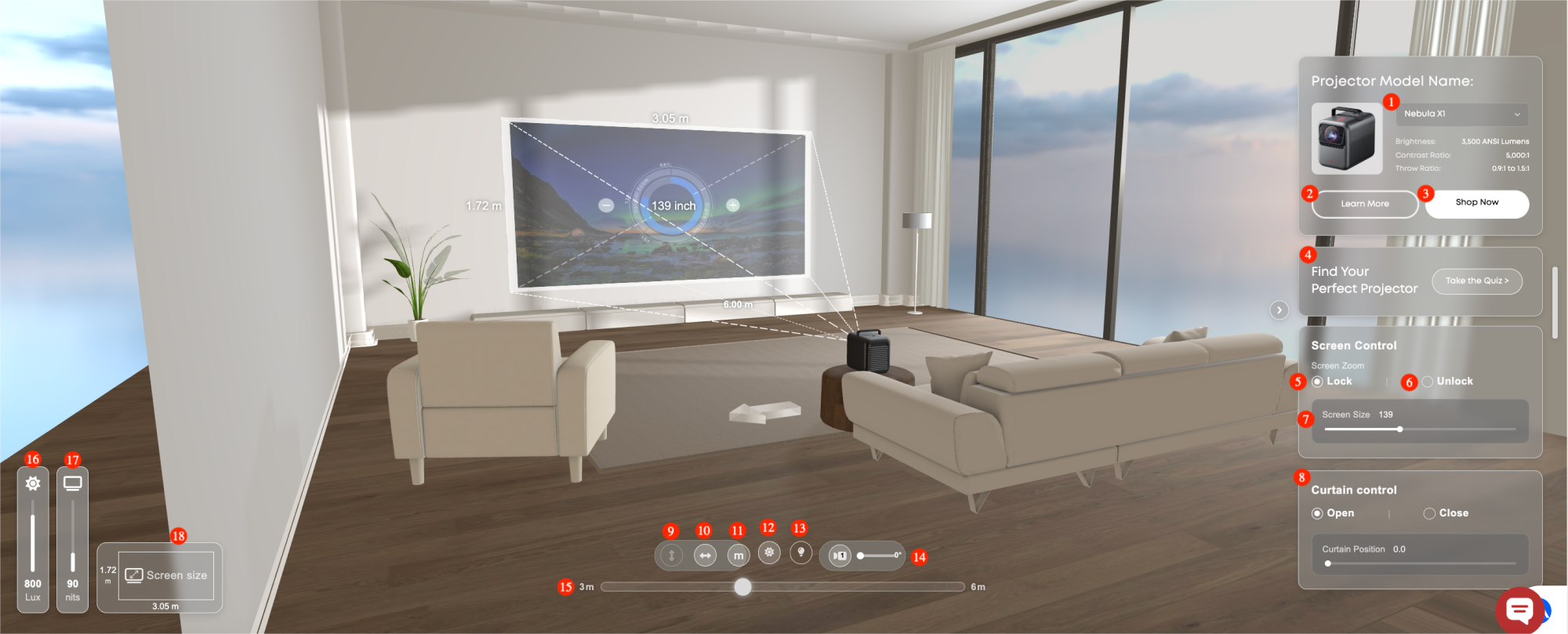
The following will introduce the specific Functional Buttons of this feature page.
-
Select Projector Model and Parameters: You can choose different projector models and view parameters such as brightness, resolution, and transmittance.
-
Learn More: Click to jump to the product introduction page on the official Nebula website to obtain detailed information.
-
Shop Now: Click to jump to the purchase page on the Nebula official website and place an order directly.
-
Quiz: Based on your usage scenarios (home theater, parties, etc.) and personal preferences (budget, etc.), we will recommend the most suitable projector model for you.
-
Screen Control (Lock Mode):
-
When moving the projector forward or backward, you can first set the desired screen size (via label 7), and then preview the screen display effect at different distances.
-
When moving the projector left or right (side projection mode): You can first set the desired screen size (via label 7), and then preview the screen display effects at different angles.
-
Screen Control (Unlock Mode):
-
When moving the projector forward or backward, the screen size will automatically adjust depending on the distance and cannot be manually set.
-
When moving the projector left or right (side projection mode): The screen size will automatically adjust with the angle change, and the size cannot be manually set.
-
Screen Size: You can manually set the specific size of the projected image (e.g., set it to 100 inches).
-
Curtain Control: You can open or close the curtain, adjust its position, and customize the range of the curtain covering the window. Through this function, preview the projection effects under different ambient light conditions (such as bright or dim).
-
Move the Projector Forward or Backward: Move the projector forward or backward to change the projection distance.
-
Move the Projector Left or Right: Move the projector left or right to adjust the projection angle.
-
Change Distance Unit: Switch between meters (m) or feet (ft) to display the distance the projector has moved.
-
Change Time Mode: Switch between day and night mode to preview projection effects during different times of day (such as sunny or dark environments).
-
Control Room Lighting: Turn the lights in the room on and off to observe the impact of different lighting conditions on the projection effect.
-
Adjust the Vertical Position of the Screen: Move the projection screen up or down to adjust the height of the image.
-
Control the Overall Movement of the Projector: Change the position of the projector (including forward / backward and left / right directions).
-
Explanation of Illuminance Unit: It represents the amount of light received per square meter of area when light is vertically incident (used to measure environmental brightness).
-
Explanation of Brightness Unit: The brightness unit represents the amount of light emitted by a light source at a specific angle (used to measure the brightness of a projector).
-
Screen Size Preview: Displays the current screen size in a small image format for quick viewing.
Whether you are a new user purchasing a projector for the first time or an experienced user looking to optimize your existing device, the Nebula Projector Calculator provides you with a zero-cost virtual experience. Visit the Nebula official website → Support and More → Projector Calculator to start your intelligent projection planning journey!