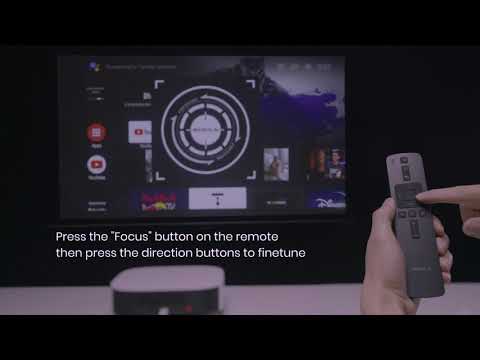
You can select your preferred image quality mode through the following paths:
Settings > Display & Sound > Picture > Picture Mode
Nebula Master Engine Introduction
Intelligent content recognition for enhanced detail in both bright and dark areas
Based on the grayscale histogram of the image, divide the image content into six types of scenes and classify them according to brightness and darkness; then adjust the gamma curve for each frame of the image to enhance the contrast, making the details of light and dark areas richer.

Dual grayscale correction to ensure grayscale consistency
The light source and display grayscale of each projector are calibrated to ensure that the Gamma coefficient of 2.2 and the color point can accurately achieve the best grayscale consistency. This ensures that the brightness of the device display matches the input signal and the grayscale performance of the picture achieves the best effect.
Ten-Thousand-Level Color Calibration
Utilizing our independently developed color calibration algorithm, we perform individual color calibration for each device using a 3D Color Lookup Table (3D LUT) for 260,000 colors (64³) before it leaves the factory. This ensures that every device displays colors accurately and consistently, achieving a color difference of less than 1 (ΔE < 1).

Image Smoothing and De-banding
To eliminate or reduce the contouring effect or banding effect in images, which typically appear in areas with color gradients, especially in cases of lower color depth.
By employing edge detection algorithms to identify regions affected by the contouring effect, and subsequently applying smoothing filters, the abrupt changes in color or brightness can be mitigated through weighted averaging. This process ensures that the transitions in brightness and color are more natural, while preserving the edge details of the image during the smoothing process.

Picture Mode Introduction
|
Picture modes |
Mode description |
Using the Scene |
|
NebulaMaster |
NEBULA image quality engineers create an exclusive ultimate image quality experience for you, presenting a natural and bright color style. |
Watch videos and movies in a dark room. |
|
Standard |
Default picture mode, suitable for most viewing situations. Strives for a balance between brightness and color. |
Suitable for playing daily TV programs,news,varietyshows,etc. in light environments. |
|
Vivid |
Enhances image brightness, contrast and color saturation to make the picture more vivid and lively. |
Suitable for users who like vivid colors or viewing in brighter light environments. |
|
Sport |
Optimizes fast-motion scenes, reduces motion blur and smear, and enhances image clarity. |
Watch sports events such as football, basketball, tennis, etc. |
|
Movie |
Adjust color and contrast to bring images closer to the film director's intent, providing a cinematic viewing experience. |
Users who have extreme requirements for color accuracy or in dark rooms or low-light environments. |
|
game |
Reduces input lag and optimizes image processing speed to provide a smoother gaming experience. |
Suitable for playing games with external gaming devices, especially games that require quick responses, such as shooting games, racing games, etc. |
|
Conference |
Optimizes image brightness clarity to provide clear images during video conferences or presentations. |
Video conferencing, online teaching, and business presentations in a high-brightness environment. |
If the above solutions cannot solve your issue, please contact Nebula Customer Support at support@seenebula.com for further assistance.