The projector supports Miracast, which means you can mirror or stream videos from your Android devices that support Miracast. Miracast is based on WiFi rather than Bluetooth. Copyrighted content from Hulu, Netflix, and similar services CANNOT be mirrored or screencast. You can install these apps on the projector to watch copyrighted content on your Nebula directly.
Note: some Android devices, like Google Pixel phones, support Chromecast instead of Miracast. To know which cast technology your Android device supports, please contact your Android device customer support directly.
Mirroring Your Android Phone to the Projector
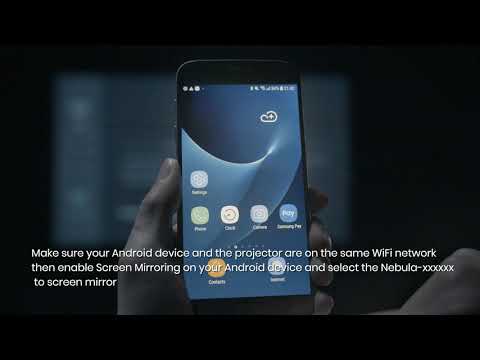
1. Connect your phone and the projector to the same Network. Note: The network can be WiFi or your phone's hotspot.
2. Open "Screen Cast" on Nebula by selecting Settings>General>Screen Mirroring.
3. Open "Screen Cast", "Multi-screen", "Cast Screen" or "Wireless Display" via the Pull-Down Menu, Settings, or WLAN settings on your phone. Note: The method varies for different Android phones.
4. Select "Nebula-xxxxxx" to connect.
Here is a video below for your reference.
Stream Videos From your Android devices to the Projector
1. Connect your phone and the projector to the same Network.
Note: The network can be WiFi or your phone's hotspot.
2. Open the streaming apps you want to cast on the projector and select a video to play.
3. Click the cast icon located on the top right corner to cast to the projector.
If you cannot mirror or stream videos properly, please contact us for further assistance. Please make sure to mention that you have tried the steps in the FAQ so that our agents do not ask you to repeat these steps.