How to Find an App in Nebula Manager/Store
Nebula Manager/Store is a built-in app store provided for Nebula projectors with the Android system (like Mars II, Mars II Pro, Capsule, Capsule Max, Apollo and Astro). You can find popular streaming apps like Netflix, Disney+, and HBO Max and directly install them on your projector. Some apps might not be available, but you can follow these steps to use your desired app:
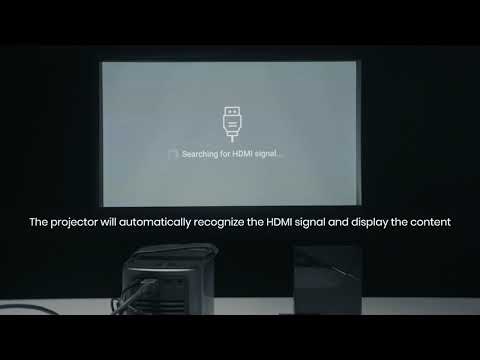
- Use a TV stick or TV box, including Fire TV Stick, Roku Stick, or Apple TV, with your projector. Most popular streaming apps will be available on a TV stick or a TV box.
- Connect a computer, tablet, or phone to your projector via an HDMI cable (use a hub or adapter if necessary) to use an app not available on Nebula Manager.
If neither option is available, contact us or scan the QR code in Nebula Store to inform us which app you’d like to install. Our customer service team will check if they can find a compatible version of the app to install directly onto your projector. Make sure to mention that you want to install the app to avoid seeing the previously mentioned steps repeated.


107 undefined

D2400_Astro_EU_Declaration_of_Conformity
D2400_Astro_Manual
D2410_Apollo_EU_Declaration_of_Conformity
D2410_Apollo_Manual
D2426_Capsule 3 Laser_Manual
D2426_Capsule_III_UK_Declaration_of_Conformity
View More

How to Connect to Nintendo Switch on Android Projectors
Bluetooth Speaker Mode on Nebula projectors
How to Set up Android projectors

How to Cast Content from my iOS Phone on Android Projectors
How to Cast Content from My Android Phone on Android Projectors
How to Connect to a TV Box on Android Projectors
View More