How to Fix Manual Keystone Correction on Cosmos Laser
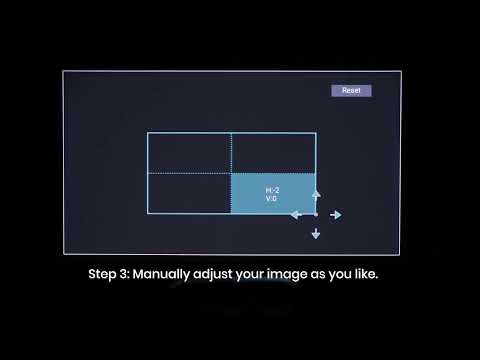
If you find that manual keystone correction isn't working properly on Cosmos Laser, try the following options:
1. Update the firmware of the 4K dongle and Cosmos Laser to the latest version:
- Press the Settings button on the remote and select Settings > Device Preferences > About > System Update.
- Press the Settings button on the remote and select Settings > Device Preferences > About > Projector Firmware Update.
2. Press the Settings button on the projector or the Source button on the remote, select Image Correction, and turn off Auto Screen Fit.
If you still have any questions or concerns regarding the manual keystone correction, contact us for further assistance.


60 undefined
How to Mirror or Stream Videos from an iOS Device to an Android TV Projector


How to Mirror or Stream Videos from an Android Device to an Android TV Projector
How to Connect an External Speaker to Your Projector (Android TV System)
New Firmware Release
How to Fix HDMI No Signal or Unstable Signal Issue
Payments & Vouchers FAQ
How to Locate the Serial Number on Nebula Products?
What is Cosmos Laser's Projection Distance?
Cosmos Laser Series FAQ
How to Stream Videos From Your Windows 10/11 PC to an Android TV Projector?

D2350_Cosmos Laser 4K_Manual
【D2350】Nebula Cosmos Laser 4K EU Declaration
soundcore Cosmos Laser 4K User Guide (D2350)
Nebula X1 QSG
Nebula X1 取扱説明書 (D2351)
【D2351】NEBULA X1 EU Declaration
View More

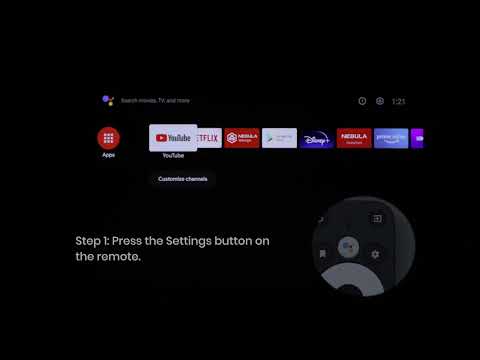
How to Update Your Firmware?

How to Screen Mirror and Cast Content from Your iPhone and Android Phone?
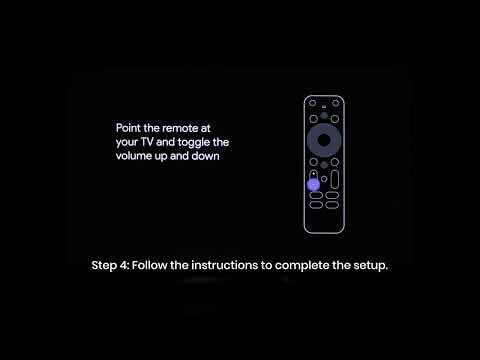
Set up Remote Buttons
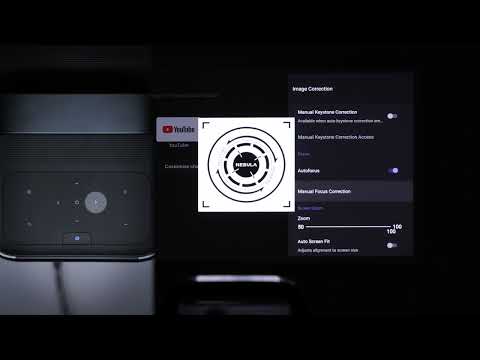
Auto & Manual Focus
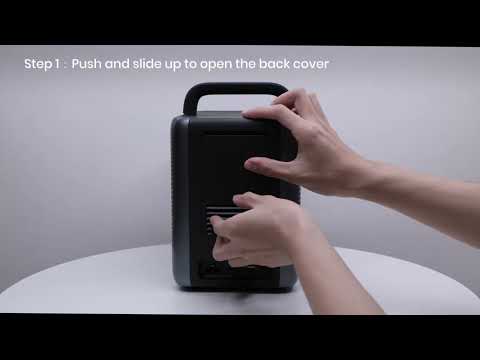
How to Install the 4K Dongle?
Manual Keystone Correction
View More