A reset can reboot your product or it can clear all product settings and revert your product to its original out-of-box state. If you encounter issues like automatic shutdown & reboot, frozen on Nebula logo, or colorful lines, please try to factory reset the projector.
To Restore to the Factory Default Settings:
Note: This reset erases all settings and data on your projector and reverts the product to its default out-of-box state.
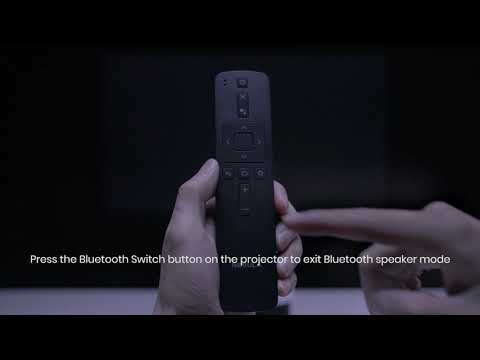
Press down the"Power" buttonand the "Switch" button simultaneously for 2-8s until you see the Android's robot logo appear on the screen.
Press and hold the "Power" button, followed by clicking the "Volume+" button quicklyand the Android Recovery screen appears.
Press the power button to skip to the "Wipe data / Factory reset" option.
Press the "Bluetooth" button and choose "Yes", the system will automatically jump back to Android Recovery screen after factory reset is done.
If you have additional questions, please contact Support@seenebula.com for further assistance. Make sure to mention that you have tried the listed steps so our agents do not ask you to repeat these steps.