Spatial Adaptation: Automatic calibration of your screen at the touch of a button
With the "Spatial Adaptation" feature, the Nebula X1/X1S automates setup and adapts the projection optimally to any environment.
How it works:
-
Start scan:
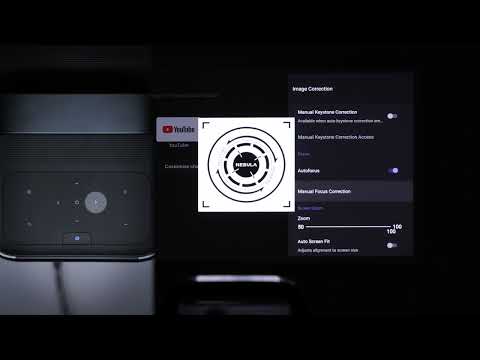
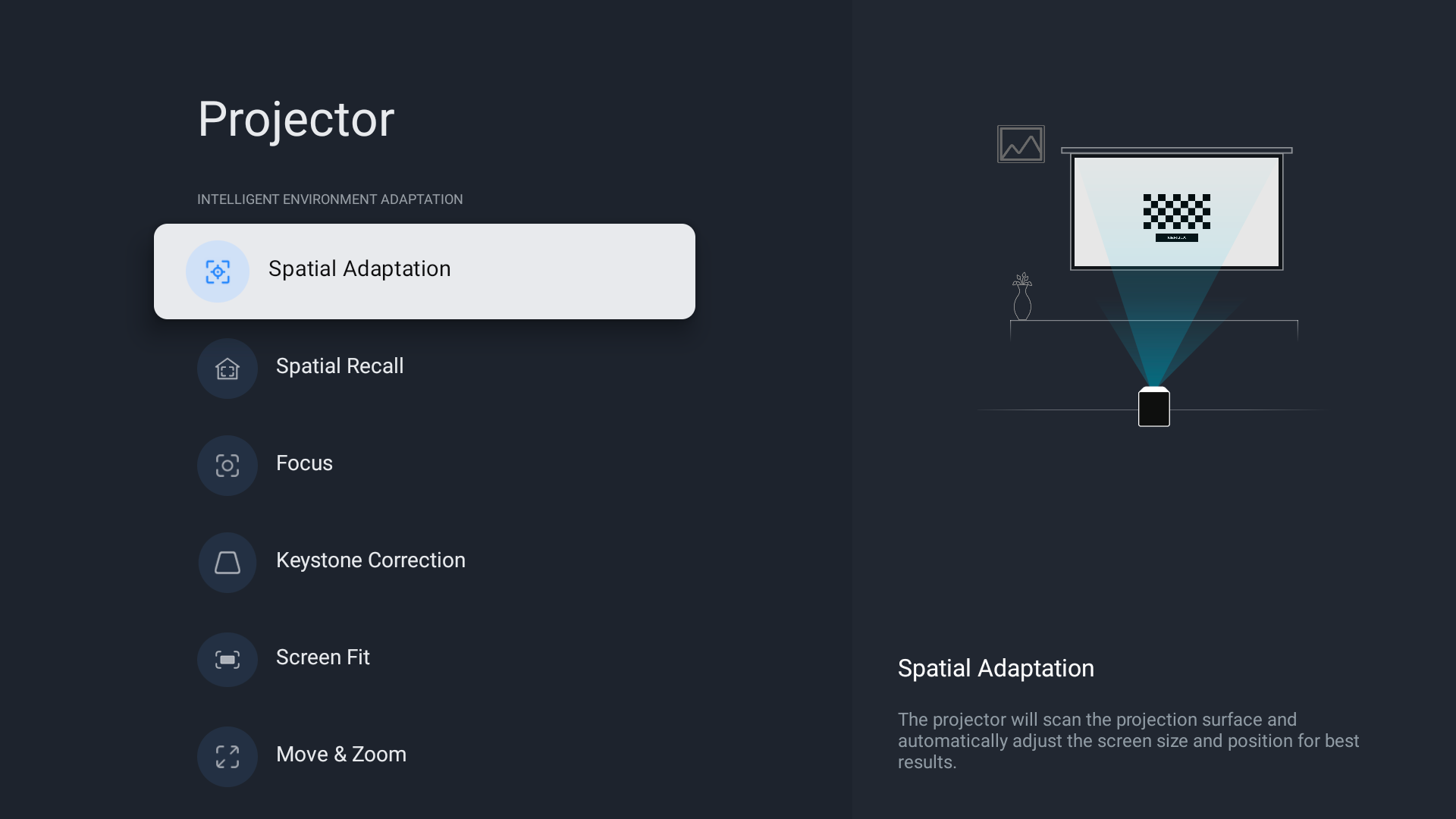
With a press of a button on the remote control, in the app, or via the menu (Settings → Projector → Spatial Adaptation), the X1//X1S starts an automated scan. The dynamic lens system with a variable aperture ratio (0.9) and an electric pan/tilt mechanism optimally adjusts the image size to the projection distance. The lens is vertically panned to produce the largest possible image for the respective position.
-
Wall detection:
-
With screen: If the X1//X1S detects the projection screen, it automatically adjusts the image precisely to its edges ("Auto Frame").
-
Without screen: The projector identifies the existing wall, detects obstacles using intelligent algorithms, and selects the optimal projection surface.
Note: The goal is to compromise image quality as little as possible while ensuring the largest possible image.
Spatial Recall: Save favorite configurations and recall them instantly
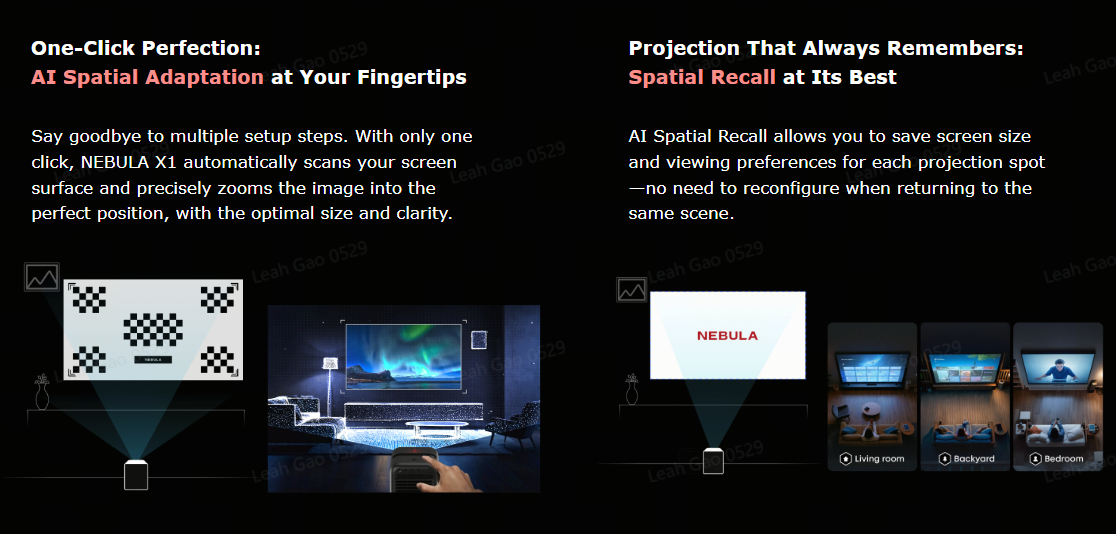
With "Spatial Recall", you can save your preferred projection settings (e.g., image size, position, wall color compensation) for specific locations.
-
Save scene: Via Settings → Projector → Spatial Recall → New Room, save the current configuration as a "scene".
-
Automatic recall: If the X1//X1S detects that it is standing at the previously saved location, the matching settings are automatically applied.
This eliminates repeated re-setup in frequently used or changing rooms – for even more convenience.
Optimal environment & screen options
To achieve the best results with Spatial Adaptation and Recall, please observe the following recommendations:
-
Wrinkle-free projection surfaces: Use smooth, wrinkle-free surfaces to ensure precise edge detection and an optimal scan.
-
Screen material: Matte white PVC or fabric screens that are suitable for short-throw or ultra-short-throw projectors are ideal.
-
Not recommended: Avoid ambient-light-rejecting (ALR) screens (e.g., with micro-structured or prismatic surfaces), as they can scatter the projected light and impair the X1's sensors.
-
Wall requirements: Flat, bright (white or light gray painted) walls provide the best brightness and contrast.
-
Lighting conditions: Additionally, minimize ambient light for an even better intelligent projection experience.
For further questions, our customer service is always happy to help.