What is Ambient Light Adaptation?
1. The light intensity sensor detects the level of ambient light in front of the projector and dynamically adjusts the brightness.
2. During video playback, the projector automatically recognizes the brightness distribution and contrast of the content being played. It then dynamically adjusts the gamma curve to enhance details in both bright and dark areas.
How to enable Ambient Light Adaptation:
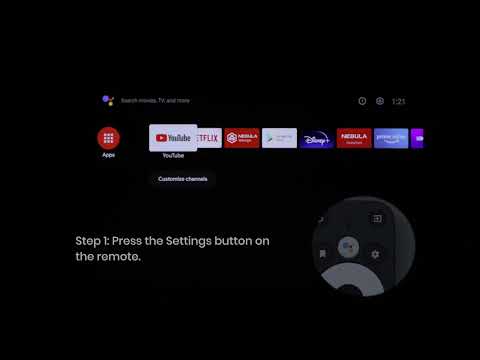
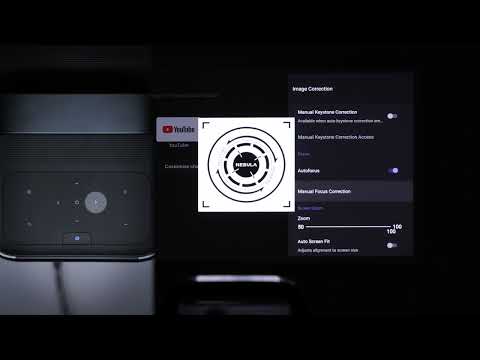
Go to Settings > Display & Sound > Picture > Ambient Light Adaptation.
Note: Ambient Light Adaptation is turned off by default.
Why isn't my Ambient Light Adaptation feature working?
The Ambient Light Adaptation function is adjusted according to the ambient light brightness and the size of the projected image. This function will only take effect when the ambient brightness is between 0-100 lux and the projection screen size is less than 90 inches. The brightness will be adjusted to 30% at the lowest and 90% at the highest.
If you're experiencing any problems with this feature, please contact us. Make sure to include details about your screen size, approximate ambient light, and the brightness settings of the projector.