1. Try a stronger Wi-Fi network or your phone's hotspot.
2. If it still doesn't work, contact our Support Team for assistance.
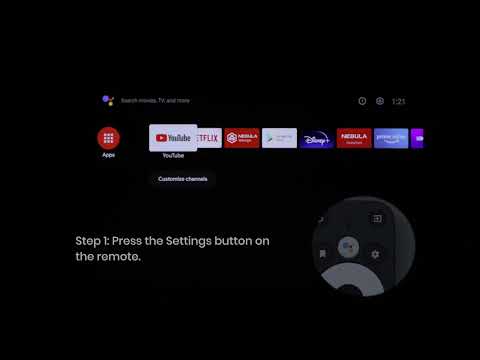
To update the system version, navigate to Settings/System/About/System update. The entire upgrade process takes about 25 minutes, during which the device will restart. After the upgrade and restart, there may be a 2-3 minute period of system lag.
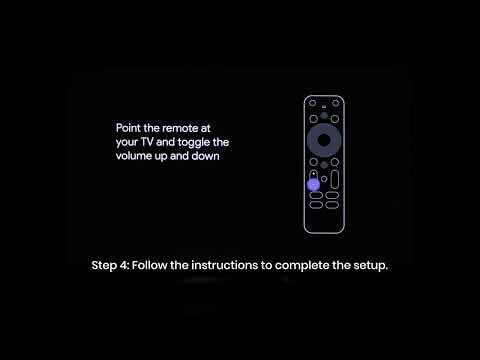
To update the remote control version, go to Settings/Remote & Accessory, enter the details for the Anker AR (name of the remote control), and click on Firmware Update. The upgrade process takes about 1 minute and does not require restarting the device.
If users are unable to receive the above updates, please try again. If the update is still not accessible after retrying, users will need to provide their SN (Serial Number). To view the SN, go to Settings/System/About/Status and check the Serial Number.
If the above solutions cannot solve your issue, please contact Nebula Customer Support at support@seenebula.com for further assistance.