Thank you for supporting our product.
1. What Are the Common 3D Video Formats?
Projectors typically support three main 3D formats: Side-by-Side, Top-and-Bottom, and Frame Packing. However, not all projectors are compatible with the Frame Packing format.
a.Side-by-Side (SBS):
This common 3D format places the left-eye and right-eye images next to each other within the same frame. The projector separates and displays them to the left and right eyes respectively, creating a 3D visual effect.
b.Top-and-Bottom (Over-Under):
In this format, the left-eye and right-eye images are stacked vertically within the same frame. The projector separates the two images and projects them to each eye, resulting in a 3D effect similar to the Side-by-Side format.
c.Frame Packing:
This is a more advanced 3D format where each eye’s image is stored in a separate, full-resolution frame. It provides superior image quality and more immersive 3D effects but requires higher hardware performance, and therefore, not all projectors support it.
In summary:
Most projectors can handle Side-by-Side and Top-and-Bottom formats, while Frame Packing requires specific hardware support.
2. Which 3D Formats Are Supported by Nebula Projectors?
Nebula projectors support the following 3D formats:
Models that support Side-by-Side and Top-and-Bottom formats:
D2120 / D2130 / D2140 / D2160 / D2341 / D2350 / D2333 / D2342 / D2351
Models that support all three (Side-by-Side, Top-and-Bottom, and Frame Packing):D2342, D2351
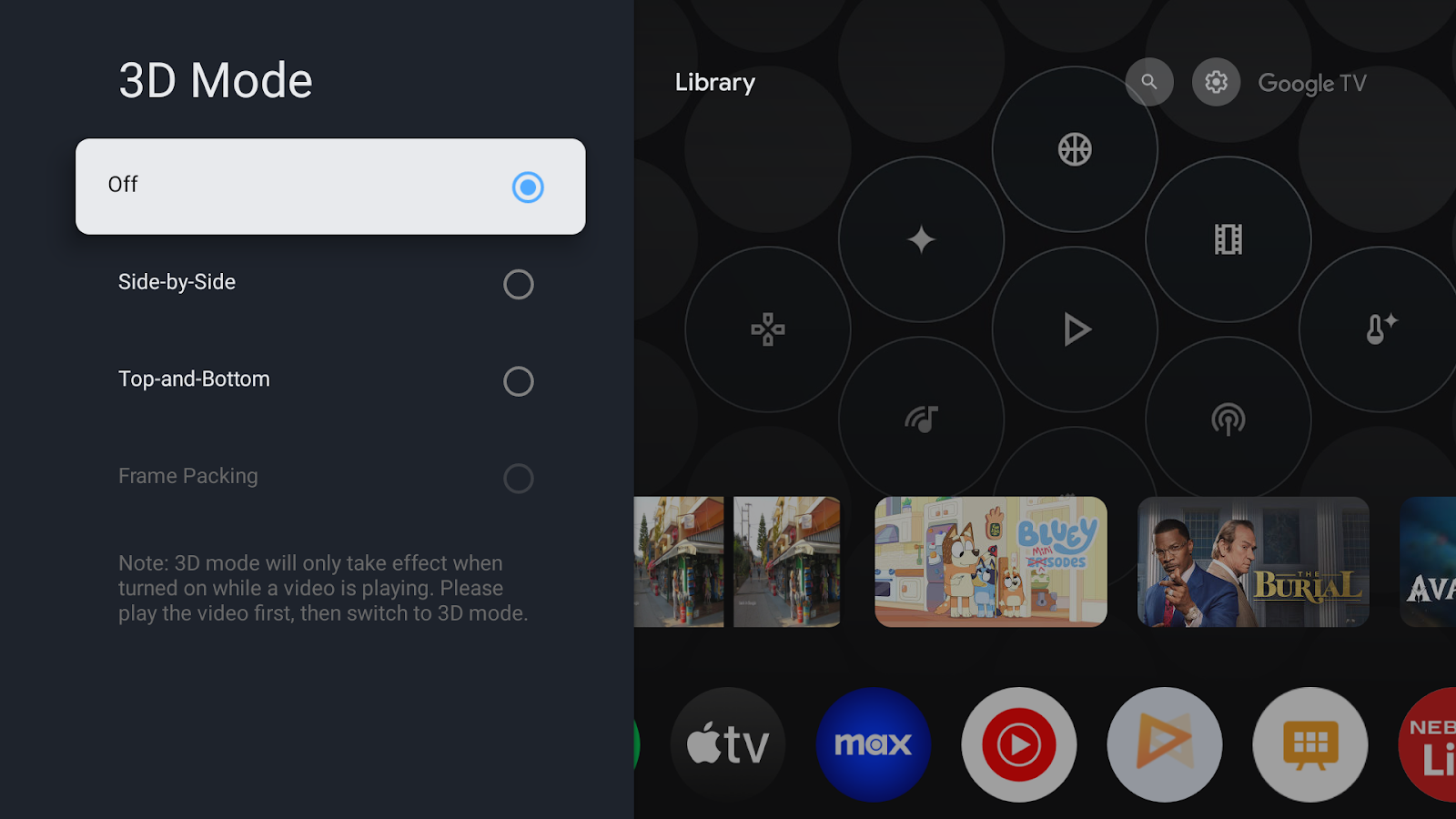
(Image Reference)
3. What Type of 3D Glasses Are Required?
Nebula projectors with DLP technology require DLP Link 3D glasses.
These glasses synchronize with the projector’s DLP signal to create the 3D effect.
You can easily find them online by searching for “DLP Link 3D glasses” on Amazon or other e-commerce platforms.
4. Where Can You Find 3D Video Sources?
a.Side-by-Side / Top-and-Bottom 3D videos:
These can be easily found on YouTube by searching for terms like “3D Side by Side.”
b.Frame Packing (Blu-ray 3D) sources:
These are generally available on Blu-ray 3D discs, which require a Blu-ray DVD player for playback.
Note:
Mainstream streaming services (e.g., Netflix, Prime Video, Disney+) do not provide 3D content. To experience true 3D movies, you’ll need a Blu-ray 3D disc and a compatible Blu-ray player.
5. How to Play 3D Side-by-Side (SBS) Videos
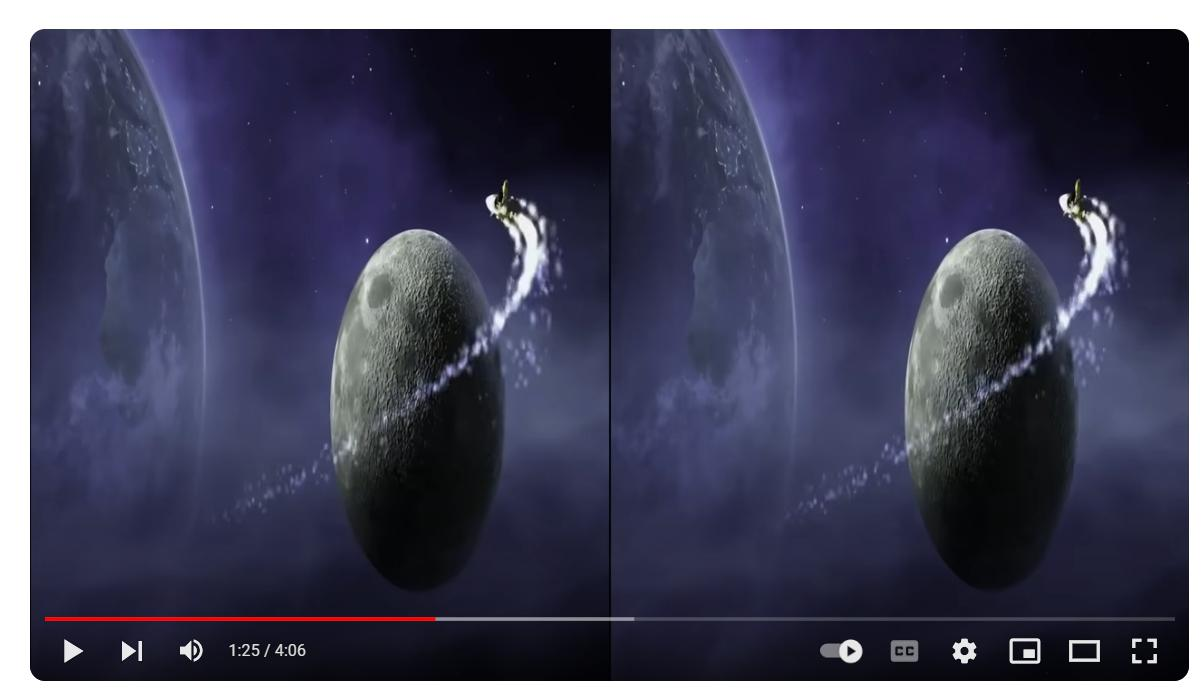
When playing video sources like the one shown below, the video source displays side-by-side on the left and right sides.
To enable the 3D side-by-side format effect, enter the settings menu: All settings > Picture > 3D mode and activate the 3D side-by-side mode.
For reference, see the YouTube URL:
https://www.youtube.com/watch?v=u0hmMt5znX0&t=101s
(Image Reference)
6. How to Play 3D Over-Under (Top-and-Bottom) Videos
When playing video sources like the one shown below, the video source image appears side-by-side vertically.
To enable the 3D format effect, go to the settings menu: All Settings > Picture > 3D Mode and activate the 3D Over-under mode. Reference URL:
For reference, see the YouTube URL:https://www.youtube.com/watch?v=9ScZRkRUYLM
(Image Reference)

7. How to Play 3D Frame Packing Videos
a.Frame Packing format can only be enabled when the current playback source is detected as a Blu-ray 3D disc format.
b.Connect an external Blu-ray DVD player via HDMI (ensure 3D is enabled in the DVD player's settings menu).
c. Play a Blu-ray 3D disc on the DVD player and start playback in 3D mode.
d. Enable Frame Packing format under All Settings > Picture > 3D Mode.
If the above solutions cannot solve your issue, please contact Nebula Customer Support at service@soundcore.com for further assistance.