To optimize your user experience on Nebula Connect App, we summarized the App function guide. Please make sure your projector and Nebula Connect APP are updated to the latest version.
Please note that the latest version of Nebula Connect App is only compatible with GTV system projectors. For specific compatible models, please pay attention to the "Applicable for those products" section in this article or contact the customer support team according to the instructions at the end of the article for confirmation.
Main Page
Tools
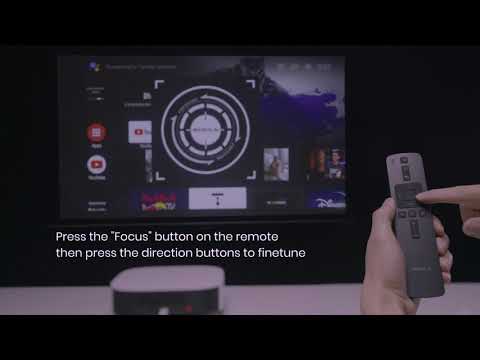
Remote. You can use the Nebula Connect APP as a remote control to control the projector.
Picture. You can directly adjust the brightness and picture mode of the image.
Sound. You can directly adjust the volume and sound mode of the projector. You can also set the sound mode to custom and adjust the three parameters of Balance, Bass, and Treble according to your preferences.
Image Correction. It has the same function as the "Auto Image Adjustment" button on the remote control.
Zoom. Adjust the size of the screen.
Cast. If you use an iOS device to cast the screen, you can quickly download or open Nebula Cast by clicking Enable Nebula Cast. Then turn on the mirroring function on the iOS device and select the projector to cast the screen. If you are using an Android device, please refer to the following article to mirror your screen.
Speaker. Turn on Bluetooth speaker mode. Then turn on Bluetooth and pair your phone. The projector will work as a Bluetooth speaker to output the sound of your phone.
Walls. You can specify to project an atmosphere wall or wall clock image.
All Settings. Directly open the settings interface in the projector and the Nebula Connect APP will switch to the remote control interface.
Power. Shut down or restart the projector, or put it into sleep mode
Accessory. Open the projector's Bluetooth pairing interface and the Nebula Connect APP will switch to the remote control interface. You can pair the required Bluetooth devices, such as remote controls, speakers, microphones, etc.
Wi-Fi. Open the projector's Wi-Fi connection interface and the Nebula Connect APP will switch to the remote control interface.
Inputs. Open the projector's Channel and Inputs interface and the Nebula Connect APP will switch to the remote control interface. You can switch the signal source to HDMI here.
My APPs
You can directly open the corresponding APP through the My Apps list.
If you encounter any problems during use, please contact Nebula Customer Support at support@seenebula.com for further assistance.