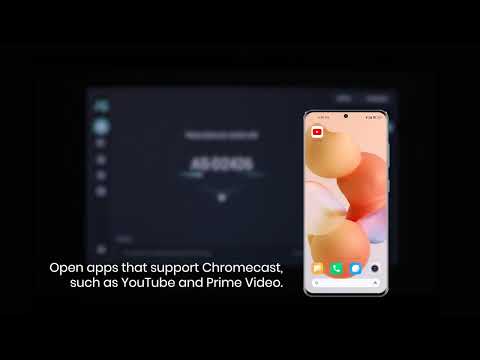
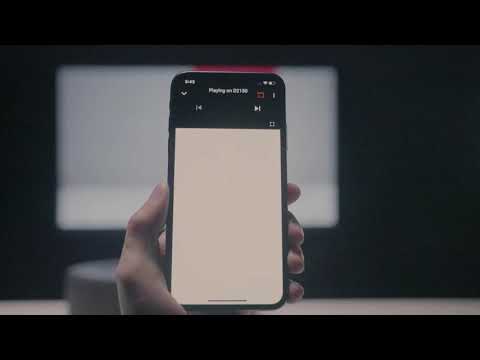
iOS devices support AirPlay and while the Nebula projector does not have AirPlay preloaded, you can still manually enable it. Please note that copyrighted content from streaming services like Netflix, Disney+, Hulu, MAX, ITVX, Amazon Prime video, and DRM video cannot be screen-mirrored and cast via AirPlay.
Screen Mirroring Your iPhone or iPad to the Projector
1. Install the Nebula Cast app from Google Play Store to enable AirPlay on your projector
2. Connect your iPhone or iPad and the projector to the same Network. The network can be Wi-Fi or your phone's hotspot.
3. Enable Screen Mirroring on your iPhone or iPad in the control center.
4. Choose your Nebula projector from the Screen Mirroring list.
Streaming Video From Your iPhone or iPad to the Projector
1. Install the Nebula Cast app from the Google Play Store to enable AirPlay on your projector.
2. Connect your iPhone or iPad and the projector to the same network. The network can be Wi-Fi or your phone's hotspot.
3. Open the streaming app you want to cast to the projector and select a video to play.
4. Click the AirPlay icon or "Cast" icon located on the top right corner to cast to the projector.
Screen Mirroring From Mac:
1. Make sure that your Mac and Capsule 3 Laser are on the same Wi-Fi network or phone hotspot.
2. Click the AirPlay icon on the Mac and select your projector to start mirroring. The AirPlay icon in the menu bar will turn blue when AirPlay is active.
3. To stop mirroring, click the AirPlay icon again and then select Turn AirPlay Off.
Note: For MacBook Air, MacBook Pro, and iMac, the AirPlay icon will only be displayed in the menu bar when AirPlay mirroring is available. DRM video can only be supported by casting via HDMI cable.
If you still have any questions, please contact Support@seenebula.com for further assistance.