Get Started with Your Nebula Capsule 3 Laser Projector
Hey Capsule 3 Laser customer, Thank you for choosing Nebula. Here are some tips on how to get the most out of your new projector.
1. [Downloading the Nebula Connect and Nebula Play Apps]
Keep your devices' firmware up to date for the best performance. You can do so by going to: Settings > Device Preferences > About > System Update
3. [Positioning Your Projector]
The distance between Nebula Capsule 3 Laser and the projection surface must be a minimum of 1.06 m / 3.37 ft and a maximum of 3.18 m / 10.43 ft to get a projection image between 40 and 120 inches.
40-120 in:
120 in @3.18 m / 10.43 ft;
100 in @2.65 m / 8.69 ft;
80 in @2.13 m / 6.99 ft;
60 in @1.59 m / 5.22 ft;
40 in @1.06 m / 3.47 ft.
4. [Focus Settings]
Activate Autofocus by selecting Settings > Projector Settings > Focus Settings. Slightly move the device or press the focus button on the remote to trigger autofocus and auto keystone correction.
5. [Keystone Correction]
Capsule 3 Laser supports auto and manual vertical ±40° horizontal ±40° keystone correction, adjusting the screen vertically and horizontally. Go to Settings > Projector Settings > Image Correction, and turn on Auto Keystone Correction. You can also manually adjust by turning off the feature.
6. [Netflix]
Notice
Netflix will appear in the second position on the Nebula Play channel on the home screen.
If you prefer to watch or want more information on how to use your new Nebula Capsule 3 Laser, check out the videos here.
Don't forget that your Nebula Capsule 3 Laser comes with a 12-month warranty and hassle-free customer service. We're here to help if you have any questions or encounter any issues. Contact us via the Nebula Connect "Help" icon or email support@seenebula.com. You'll receive a response within 24 hours.
Enjoy your new Capsule 3 Laser projector!
The Nebula Team
1. [Downloading the Nebula Connect and Nebula Play Apps]
- Download Nebula Connect from the App Store (iOS) or Google Play (Android) to conveniently control your Capsule 3 Laser.
- Download Nebula Play from the Google Play Store to your Capsule 3 Laser to get instructions, Quick Start Guide, tips, FAQs, and support information.
Keep your devices' firmware up to date for the best performance. You can do so by going to: Settings > Device Preferences > About > System Update
3. [Positioning Your Projector]
The distance between Nebula Capsule 3 Laser and the projection surface must be a minimum of 1.06 m / 3.37 ft and a maximum of 3.18 m / 10.43 ft to get a projection image between 40 and 120 inches.
40-120 in:
120 in @3.18 m / 10.43 ft;
100 in @2.65 m / 8.69 ft;
80 in @2.13 m / 6.99 ft;
60 in @1.59 m / 5.22 ft;
40 in @1.06 m / 3.47 ft.
4. [Focus Settings]
Activate Autofocus by selecting Settings > Projector Settings > Focus Settings. Slightly move the device or press the focus button on the remote to trigger autofocus and auto keystone correction.
5. [Keystone Correction]
Capsule 3 Laser supports auto and manual vertical ±40° horizontal ±40° keystone correction, adjusting the screen vertically and horizontally. Go to Settings > Projector Settings > Image Correction, and turn on Auto Keystone Correction. You can also manually adjust by turning off the feature.
6. [Netflix]
- Go to the Google Play Store. Search for the Nebula Play app and install it on your projector.
- Download Netflix.
- Install File Explorer/File Manager from the Google Play Store.
- Install the Netflix APK via File Explorer/File Manager. Go to Device > Local > Download.
- Netflix is ready to use.
Notice
Netflix will appear in the second position on the Nebula Play channel on the home screen.
If you prefer to watch or want more information on how to use your new Nebula Capsule 3 Laser, check out the videos here.
Don't forget that your Nebula Capsule 3 Laser comes with a 12-month warranty and hassle-free customer service. We're here to help if you have any questions or encounter any issues. Contact us via the Nebula Connect "Help" icon or email support@seenebula.com. You'll receive a response within 24 hours.
Enjoy your new Capsule 3 Laser projector!
The Nebula Team


0 undefined

D2410_Apollo_Manual
D4111_Capsule_Manual
D2421_Capsule II_Manual
D2323_Mars II Pro_Manual
D2150_Cosmos_Max_Manual
D2400_Astro_Manual
View More

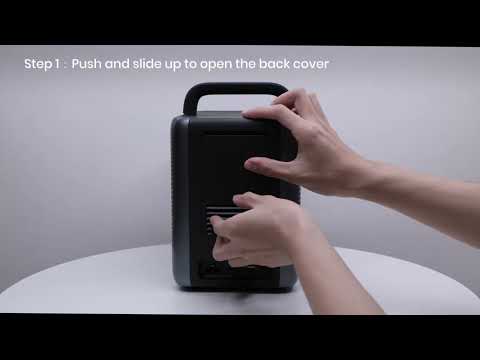
How to Install the 4K Dongle?
How to Cast Content from my iOS Phone on Android TV Projectors
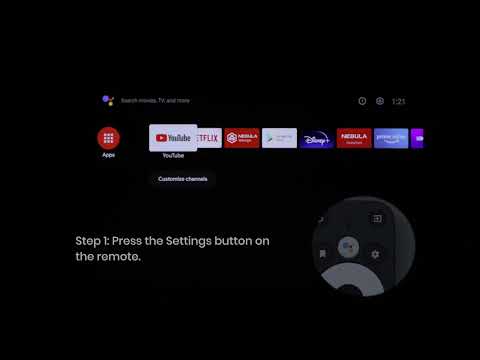
How to Update Your Firmware?

How to Cast Content from my iOS Phone on Android Projectors
How to Cast Content from My Android Phone on Android TV Projectors

How to Screen Mirror and Cast Content from Your iPhone and Android Phone?
View More