Spatial Adaptation: Auto-Calibrate Your Screen with One Touch
The Spatial Adaptation feature of the Nebula X1 revolutionizes projector setup by automating the optimization process to suit any environment. Here’s how it works:
-
Triggering the Scan:
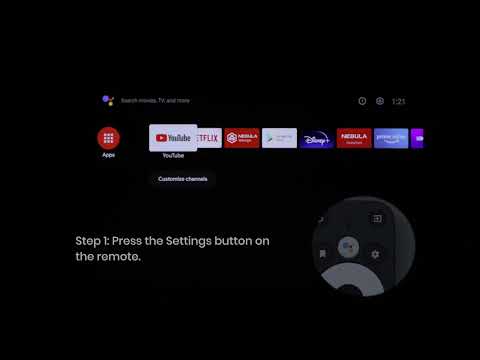
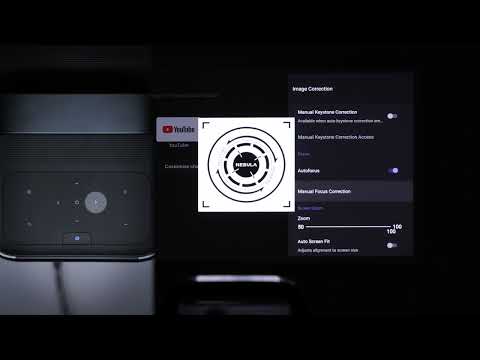
With a single click (via the remote or app or go to Settings -> Projector -> Spatial Adaptation), the projector initiates its scan using a dynamic 0.9 throw ratio lens system and an electric pan-tilt mechanism. The 0.9 throw ratio is achieved by actively adjusting the internal lens optics to project the largest possible image at the current distance from the screen, while the electric tilt mechanism enables the lens to pivot vertically.

-
Wall Detection:
-
With a Projector Screen: The system detects screen surfaces and automatically aligns the image to perfectly fit the matte’s boundaries (Auto Frame).
-
Without a Screen: The X1 scans the wall, uses smart algorithms to identify obstacles in the wall and find the best projection position.
Note:The basic definition of the best position is to minimize the loss of projection image quality as much as possible, while the screen size is as large as possible.
Spatial Recall: Save Your Preferred Settings for Instant Reuse
Spatial Recall allows you to save your ideal projection configuration (e.g., screen size, screen position, and wall color adaptation) for specific locations.
-
Save a Scene: Go to settings -> Projector -> Spatial Recall -> New space to save the current settings as a “scene.”
-
Recall with Precision: Spatial Recall can recognize the current scene. If it is confirmed that the position has not changed, it will intelligently adjust the picture and apply the scene parameters you saved previously to the current picture.
This feature is ideal for multi-room setups or frequently used spaces, eliminating redundant adjustments.

Optimal Environment & Screen Specifications
To maximize Spatial Adaptation and Spatial Recall performance, adhere to these guidelines:
Recommended Screen Options
-
Anti-Wrinkle Projection Screens: Smooth, wrinkle-resistant surfaces ensure accurate edge detection and prevent folds from disrupting scans.
-
Material: Opt for matte-white PVC or fabric screens designed for ultra-short-throw projectors.
-
Avoid Anti-Glare (Anti-Reflective) Screens: Anti-glare coatings (e.g., micro-textured surfaces or prism layers) can scatter light and confuse the X1’s sensors during scans, leading to misalignment.
-
Wall Requirements: Flat, light-colored walls (e.g., white or light gray) are ideal for optimal brightness and contrast.
-
Lighting Conditions: Properly reducing the brightness of ambient light may result in a better intelligent experience.
If the above solutions cannot solve your issue, please contact Nebula Customer Support at support@seenebula.com for further assistance.